Quicq Prestashop
The following guide explains how to install Quicq on your PrestaShop website and use JPEG optimization, WebP compression, and global CDN delivery for your images. If you want to use Quicq fully and also adjust the size, watermark, and use of responsive images on your PrestaShop environment, please contact us.
Step 1
Create an account on afosto.app if you haven’t registered yet.
Step 2
Log in to your PrestaShop website admin.
Step 3
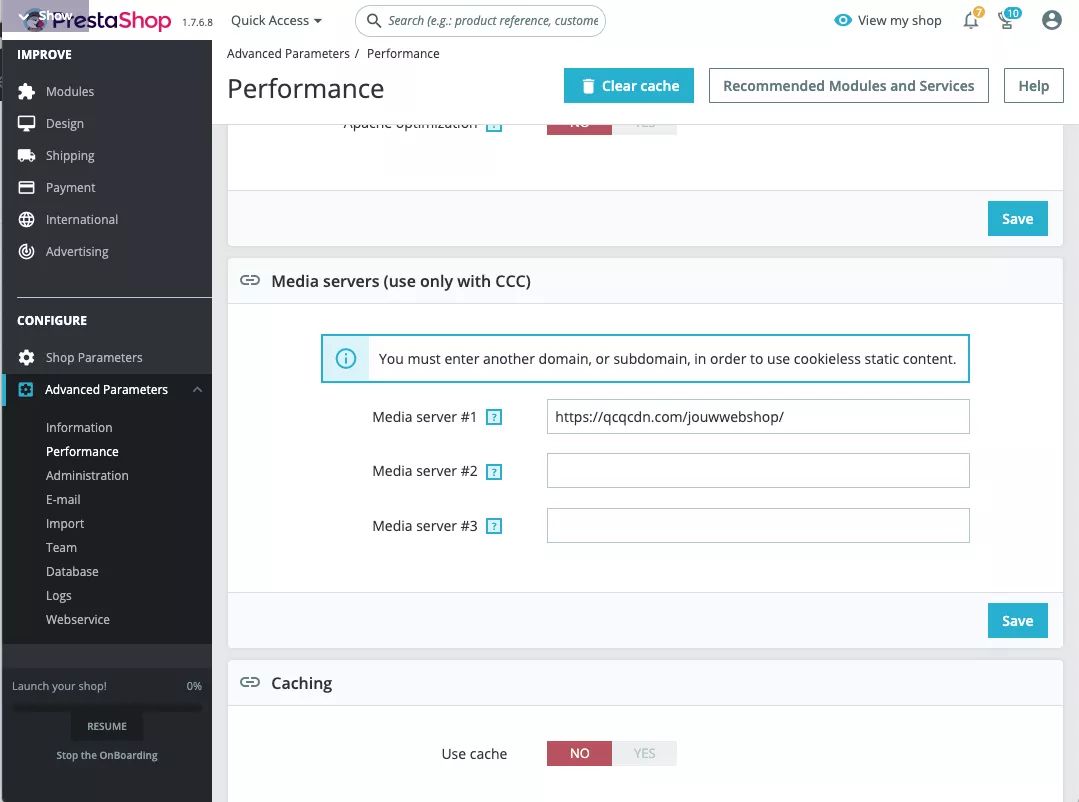
Go to 'Advanced Parameters' > 'Performance' in the admin bar.

Step 4
Enter the Quicq domain under 'Media server #1' and click 'Save'.
Step 5
At the top of the screen, click 'Clear cache'.


Step 6
Check the source of your HTML page to see if the images are correctly delivered via the Quicq CDN. How to do this can be found hier.
Step 7
You can make adjustments in your template to serve responsive images.